


Set up your 5G Wireless Broadband
Your 5G Wireless plan is designed to connect to our 5G network. To get a strong signal, where you place your modem makes all the difference. Your modem needs to be near a window facing in the direction of your nearest 5G cell tower.
Find out how to set up your modem to get the most from your 5G Wireless Broadband.
If you are on a 4G Wireless Broadband plan, view set up 4G Wireless Broadband
1. Find your nearest cell tower
Once you've received your 5G modem, the map below will help you find the direction of the best 5G cell tower for your property.
- Enter your address in the search bar above the map.
- The large green arrow that appears is pointing towards the best 5G cell tower for your location. Try to position your modem near a window facing in the direction the arrow is pointing.
- If you see a smaller orange arrow, it's pointing towards the next best 5G cell tower. If there's no suitable place to put your modem facing in the direction of the green arrow, find a window facing in the direction of the orange arrow instead.
This map does not check whether 5G Wireless Broadband is available at your address. If you want to see if you can get 5G Wireless Broadband where you are, use the broadband address checker. Check address
To change to satellite view so you can see your house, select the small letter S on the lower right hand side of the map.
2. Download the Nokia WiFi app
The Nokia WiFi app steps you through setting up your Nokia FastMile 5G Gateway 7 modem.


3. Set up your modem for a strong connection
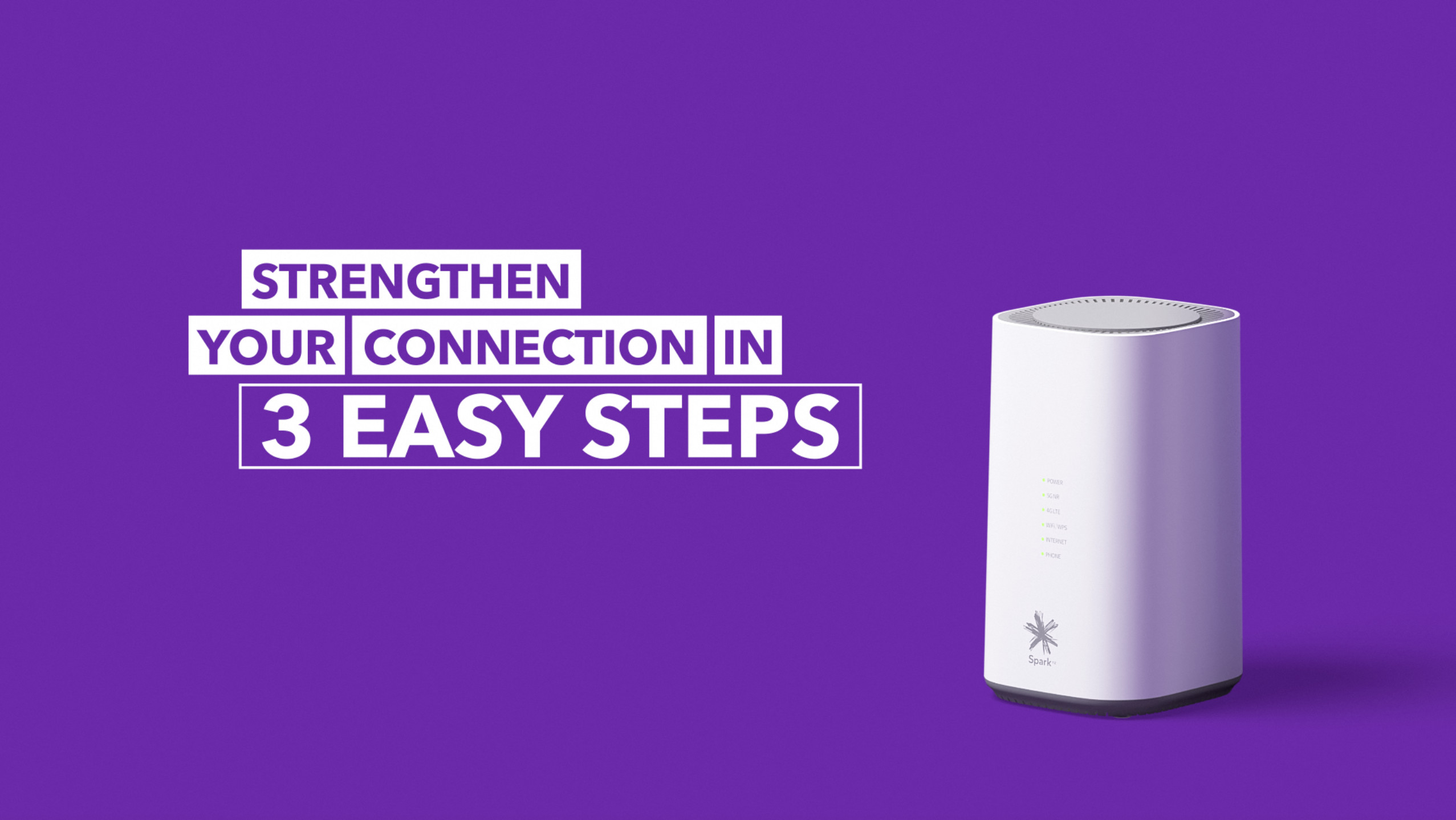
1. Get the best signal
Set up your modem off the ground and near a window, facing in the direction of your nearest cell tower.
You can use the map above to find the right spot for it.
2. Reduce interference
Keep your modem clear of house plants, tech or big objects that could get in the way.
3. Get connected
Plug in your modem and give it a few minutes for the light on the front to go green.
If it doesn't, try moving it to a different spot.
Helpful information
Modem light troubleshooting
Use the map above to check the recommended direction for your local 5G cell towers, then try the following steps:
- Make sure your modem is plugged into a power outlet and switched on.
- Allow up to five minutes for the modem to connect to the network and find the best signal.
- Check that your modem is positioned near a window facing the direction shown by the large green arrow on the map. If that's not possible, look for a smaller orange arrow and try placing the modem near a window facing that direction instead.
- Move the modem as close to the window as possible. A windowsill is ideal.
- Keep the area around the modem clear of objects such as furniture, electronics, pot plants, and curtains, which can affect signal strength.
- Use the Nokia WiFi app to compare signal strength in different locations and find the best position for your modem.
For additional modem support, see the Nokia FastMile 5G Gateway 7 support guides
If you still need help, find the best way to get in touch on our Help page. See ways to contact us
Map display issues
The map shows the direction of the strongest 5G cell towers for your location. It doesn't indicate whether 5G Wireless Broadband is available at your address. If no arrows appear when you enter your address, there may not be 5G coverage in your area. You can check mobile coverage in your area. See network coverage
To find out which broadband plans and technologies are available at your address, use our address checker. Check address
We're continuing to expand our network, so if 5G Wireless Broadband isn't available at your address yet, check back again in the future.
Finding the best location for your modem
Find the direction of your nearest 5G cell tower
- Enter your address in the search bar above the map and select the correct result.
- A large green arrow will appear, showing the direction of the strongest 5G cell tower for your location.
- If an alternative tower is available, you'll also see a smaller orange arrow showing the direction of the next best 5G cell tower.
Find the best location for your modem
- Look for a window facing the direction of the large green arrow and check there's a nearby power outlet.
- If you're unsure which side of your home the arrow is pointing to, select S in the bottom-right corner of the map to switch to satellite view. Then use the + button to zoom in until you can see your home.
- Position your modem as close to the window as possible. A windowsill is ideal.
- If there isn't a suitable location and an orange arrow shows in your search results, try placing your modem near a window facing that direction instead.
Connecting your devices to WiFi
- On your computer, phone or tablet, open the list of available WiFi networks.
- Find and select your modem's WiFi network name. You can find it on the label on the bottom of your modem.
- Enter the WiFi password shown on the modem label. Once connected, you'll be ready to start using the internet.
Tip: If the text on the bottom of your modem is difficult to read, take a photo with your phone and zoom in for a closer look.
For additional modem support, see the Nokia FastMile 5G Gateway 7 support guides. View Nokia FastMile 5G Gateway 7 guides
Understanding 4G and 5G signal changes
Your connection may occasionally switch between 5G and 4G to maintain the best possible service if the 5G signal is temporarily disrupted. If this happens frequently, try moving your modem to a different window and check whether the signal improves.
As we continue to expand and optimise our 5G network, the strongest cell tower for your location may change over time. To make sure your modem is positioned for the best possible signal, it's a good idea to check the tower finder map every few months and confirm your modem is facing the recommended direction.