


Please configure
Set up 4G Wireless Broadband
Find out how to set up your 4G Wireless Broadband and landline.
If you are on a 5G Wireless Broadband plan, view set up 5G Wireless Broadband
Set up your modem
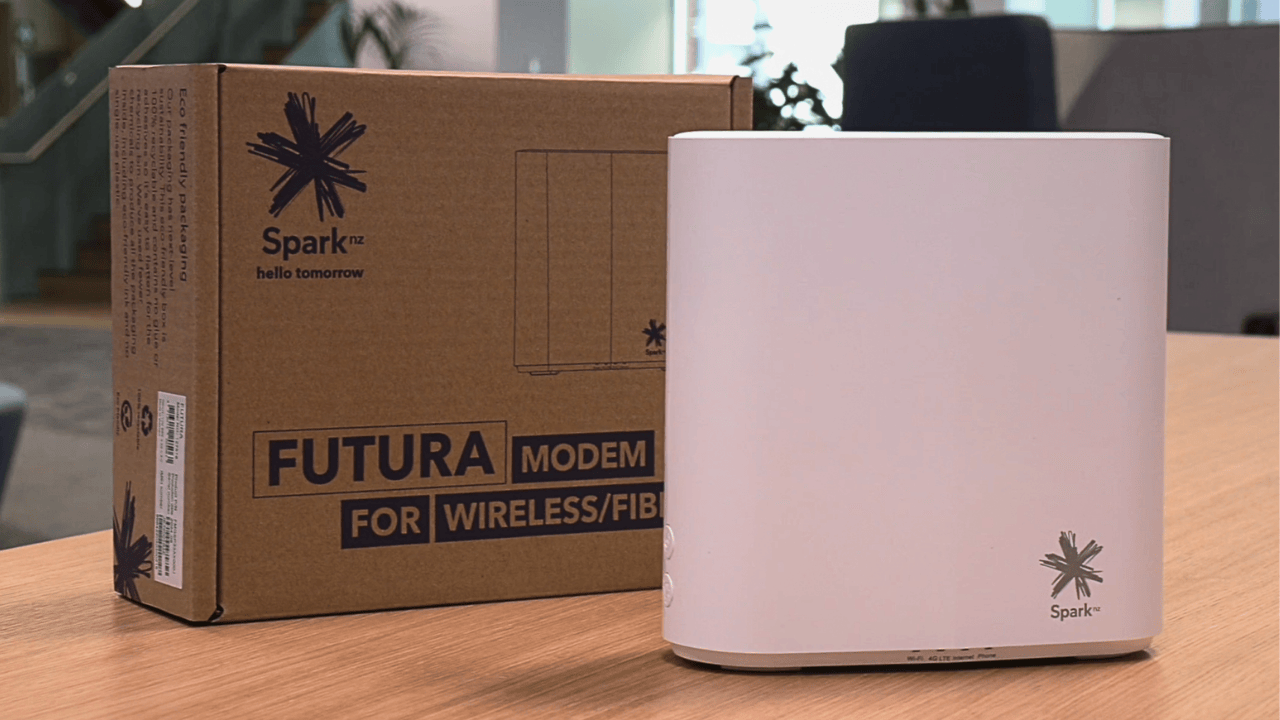
The steps below are for setting up a Spark Futura Modem on 4G Wireless Broadband. If you have a different Spark wireless modem, find the instructions for your modem on our modem device help page.
See instructions for different modems
In the box you'll find:
- Your Spark Futura Modem
- A power supply cable
- A blue ethernet cable
- A yellow ethernet cable
- A grey phone cable
- A safety guide
Next, choose where you'd like to place your modem. To help maximise performance, pick a central spot in your home that's close to both a power outlet and a window.
- Plug your modem into a power outlet using the power cable and turn it on.
- Wait while the modem connects to the network. This can take up to five minutes.
- Check the colour of the 4G LTE light on the front of the modem. For the best performance, the light should be green.
- If the light isn't green, move your modem closer to the window for a better signal. You can also try our Check Connection tool. This will automatically scan your home connection and provide you recommendations to optimise your home network. Learn how to use the Check Connection tool
Connect your computer, mobile or tablet to 4G Wireless Broadband
- On your computer, mobile or tablet, look for your modem on the list of WiFi networks. You can find your modem's name on the back of your modem.
- Select your modem from the list. Type in the password (also on the back of your modem). When it connects, you can start browsing the internet.
- If your computer doesn't have WiFi, connect your computer to the modem using an ethernet cable.
Connect your landline
If you have a landline service with your 4G Wireless Broadband, follow these steps:
- Plug the grey phone cable into your phone and then plug the other end into your modem. Make sure you plug your phone into a power socket as well.
- Check for a dial tone.
- If you can't hear a dial tone, try turning your modem off and on again. If it's a new landline, it can take up to 30 minutes to activate.
- When you can hear a dial tone, this confirms that your phone is set up.
Things to know about 4G Wireless Broadband
- 4G Wireless Broadband uses Spark's 4G network. The speed of your connection depends on your signal strength.
- Check your data usage in the Spark app or MySpark online.
- If your plan has a data cap and you go over it, some plans will automatically give you more data and charge you for it. See the terms of your plan for more details. View product descriptions
- You can set up alerts for data usage through MySpark. Find out how to set up data usage alerts
- If you're planning on moving house, talk to us to check if you can access 4G Wireless Broadband from your new address. We can organise a reconnection from there. Find out more about moving house
- More information can be found in the terms and conditions. See terms and conditions
- Value added services may come with your 4G Wireless Broadband plan. Find out more