


Please configure
Manage and update my account
Find out how to make changes and manage your Spark account. Learn how to add account authorities, find your account number and how to switch to online bills.
Manage your account
Use MySpark online or the Spark app
Use MySpark or download the latest version of the Spark app to manage what's happening on your account.
You can:
- Pay your bill
- Access the last 18 months of your Spark bills. Find out how to view your bills
- Update the email address for receiving your digital bill
- Add or change services on your account
- View your usage (calls, texts, data) and set limits and alerts for your usage to avoid extra charges
Ready to get started?
New customers:
Returning customers:
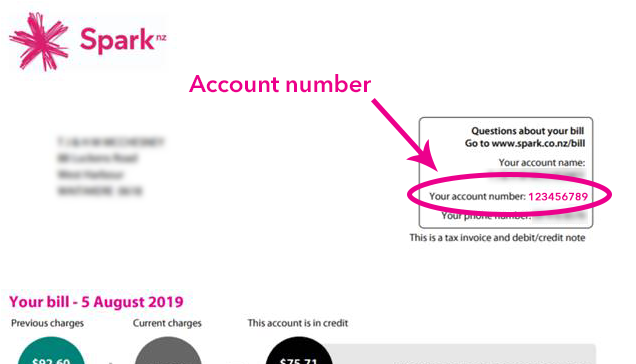
Find your Spark account number
You can find your account number in the top right corner.
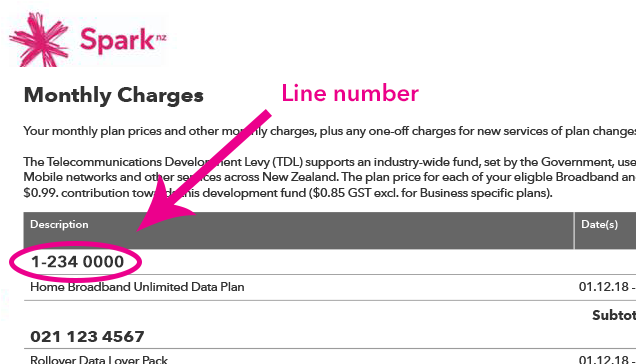
You can find your broadband line number on the monthly charges section, under the heading Description.
MySpark
Sign in to MySpark and your account number is at the top right corner of the welcome page.
Spark app
You'll need the latest version of the Spark app.
In the app, tap your profile icon in the top left. Your account number will be displayed under your account name.
If you have an older version of the app:
In the app, go to the Products tab and select one of your plans or services. Your account number will appear near the top of the page for broadband plans, and near the bottom for mobile plans.
Need help finding your account number?
If you can't find your account number, phone Service Express on 0800 000 000 or message us to request your account number.
Message us
Add account authorities
- You must have account authority before we discuss account information.
- You can add family members, spouses, partners or friends as account authorities and you can change them at any time.
- Account authorities can access and change personal details, change or cancel products and services, and charge them to your Spark account.
- To manage account authorities you already have, call us on 123, message our team or visit us in store. Message us
Cancel your account
- We'll be sorry to see you go. You'll need to check a few things first. Cancel Spark account
- If you have a credit on your final account, contact us for a refund. Contact us now
When the Spark account holder has died - estate accounts
You can disconnect any services associated with the account. Email us at estates@spark.co.nz with the following details:
- The deceased account holder's Spark account number or phone numbers.
- When you'd like the numbers disconnected.
- The address to send the final bill to. Please note, it can take up to one month for the final bill to come through.
- The phone number and address of the person handling the estate. This could be your details, a solicitor's, or a public trust's.
To transfer the account to someone else, the person taking over the number will need to contact us.
Billing and payments
Switch to online bills
If you haven't already registered for MySpark, please do so. Register for MySpark
When you register for MySpark for the first time you'll be switched to online bills instead of posted bills.
If you're already registered for MySpark:
- Sign in to MySpark
- Select Settings from under General
- Under Account select Bill Preferences
- In the Billing section, select Switch to electronic bill (you may need to enter or update your email address)
Receive your bill by post
To have a paper copy of your bill posted to you, please message our team. Message us
Please note that a monthly paper invoice fee may apply.
Update the email address you get your bills sent to
You can change the email address you have bills sent to in MySpark in the Account settings section.
- Sign in to MySpark
- Select Settings from under General
- Under Account, select Bill Preferences
- In the Billing section, select Change
- Follow the prompts to change the email address
Make changes to your bill
- Sign in to MySpark to make any of the changes below. Sign in to MySpark
- Change your postal address
- Change your billing email address
- Change how GST appears on your bill
- If you haven't signed in before, you'll need to register first. Register for MySpark
- When you register for MySpark for the first time you'll be switched to an online bill. This saves you $42 per year if you get your bills emailed instead of posted.
- Or, fill out one of the forms below and we’ll take care of the rest:
- Change how GST appears on your bill. Change GST display form
- Request a printed copy of a previous bill. Printed copies of previous bills costs $5.11 per bill. Post a copy of previous account form
- Change your bill statement date. Change bill statement date form
- You'll need to contact us to change the name on your account.
Request a receipt
If you'd like a GST receipt of your payment, please message our team. Message us
Tools and support
Check broadband usage
Use the Spark app or MySpark online to check your current and previous broadband usage.
Use the Spark app
You'll need the latest version of the Spark app.
- In the app, go into Services
- Select your broadband plan, you'll see your usage for the month
- Tap View details to see your detailed usage
If you're using an older version of the Spark app, update to the latest version or follow the steps below:
- In the app, go to MySpark
- On the Usage screen, you'll see how much broadband data you've used for the month
- Select your broadband plan, then tap View History. You'll be able to check Hourly or Daily data usage
Use MySpark
- Sign in to MySpark
- Select Usage
- In the Broadband usage section, you can see how much broadband data you've used for the last 12 months
- Tap on Hourly or Daily tabs to check how much broadband data you've used
Use Service Express
To manage aspects of your account over the phone, call Service Express on 0800 000 000. You can:
- Pay your bill using a credit or debit card. You can also register a card for future payments.
- Make a payment against someone else's account, or top up a Prepaid mobile.
- Tell Spark about a payment you've made at a Post Shop or by phone/internet banking that you'd like to query.
Service Express PIN
- The first time you use Service Express you'll hear a prompt to set up a PIN
- You can choose to have a PIN any time you call, or only when calling from a phone that isn't your home number
- If you choose not to have a pin, anyone calling from your home phone can access your account and they can:
- Register or manage a registered credit/debit card
- Request more time to pay your bill
- Make a payment using a registered credit/debit card
- Find out your home broadband usage
- Setting up PIN verification also means you can use Service Express from any phone
Note, if you enter the wrong PIN three times, you won't be able to access your account. To reset your PIN, you'll need to supply your account number and follow the prompts to select a new PIN.